Use Passkeys
- Passkeys make logging into accounts faster, easier, and safer.
- They can replace both passwords and two-factor authentication in
day-to-day use.
- Behind the scenes, a passkey uses a pair of mathematically linked
numbers – one kept on your device and the other by the website – making it
extremely resistant to hacking.
- Lost passkeys can be replaced by verifying your identity, for example
via a text message, recovery code or another device.
The case for passkeys
In the last two chapters you learned the importance of protecting your
online accounts with strong, unique passwords. You also learned that this is
easier said than done, and that password managers can help. Next, you
learned that by combining passwords with two-factor authentication, the
security of an account is greatly improved.
But passwords are still a liability both for website operators and for
customers, and two-factor authentication can be a hassle. So, for several
years, computer scientists have been working on an alternative that’s both
easier and safer. The result is passkeys.
The technology underlying passkeys is an open standard managed by a
non-profit organisation, which ensures that passkeys are widely compatible
with apps and devices from different manufacturers including Apple, Google
and Microsoft.
Matching pairs
A passkey is a unique association between you and a website. It’s not
something you have to come up with yourself; but it’s not just a long,
random password either.
In fact, there are really two keys involved: one kept secret by your
device, and one stored by the website. The keys are mathematically linked
such that your device can prove its identity to the site without actually
sending the secret key.
Security benefits
Unlike a password, you can’t be tricked into typing a passkey into a fake
website (for more on phishing, see Recognise
Social Engineering). In fact, when logging in with a passkey there’s no
box to type in at all — it happens behind the scenes. And even if a scammer
did prompt you for your secret key, you wouldn’t know what to type.
Next, unlike a human, a browser can’t be tricked by a subtly misspelt
web address or a convincing spoof of a popular site: it will only
automatically use a passkey on the site to which it belongs.
Finally, passkeys are secure enough by themselves that they remove the need
for two-factor authentication in routine use. At the time of writing, the
extent to which different services allow you to sign in solely with a
passkey (skipping a one-time code, for example) remains to be seen; but in
theory, passkeys make signing in quicker and easier than ever.
Creating passkeys
Some websites will prompt you to set up a passkey when you sign in.
Otherwise, you can go to the page for managing your account; typically the
link is in the top-right corner. If the website supports passkeys, you’ll
find the option to create one under a heading like ‘security’ or ‘sign-in
options’.
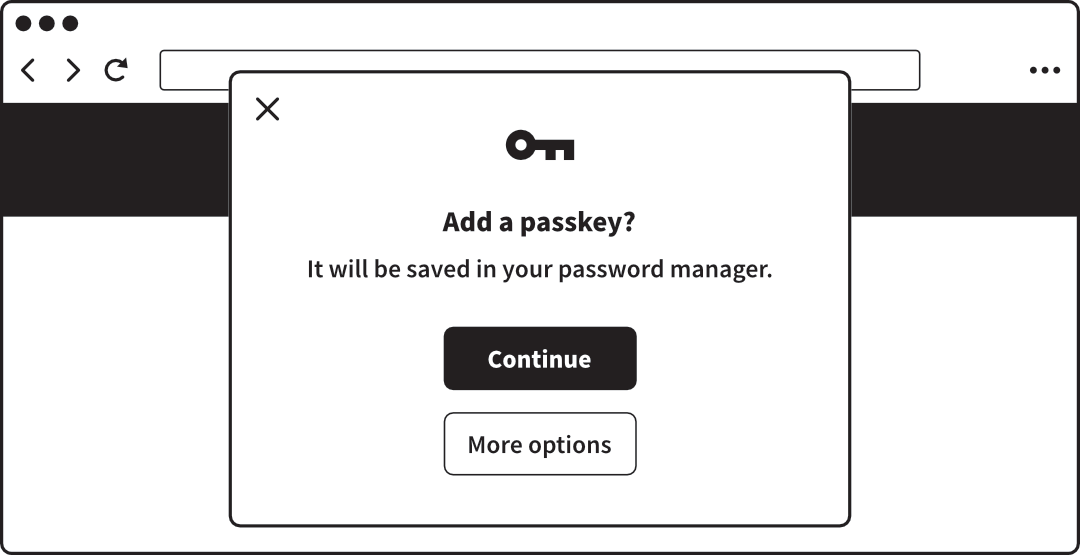 A web browser offering to create a passkey
Behind the scenes, creating and storing the key pair is the job of
either:
- The operating system: Windows, macOS, Android, iOS or otherwise.
- A password manager, like 1Password or Google Password Manager.
Using passkeys
Your computer, tablet or phone stores passkeys securely, but you don’t need
to remember a new code or master password to actually log into websites with
them: you just use the same fingerprint, face recognition, PIN or password
you use to unlock the device. Your browser selects the passkey that matches
the website you’re using, and performs the necessary ‘handshake’ to log you
in.
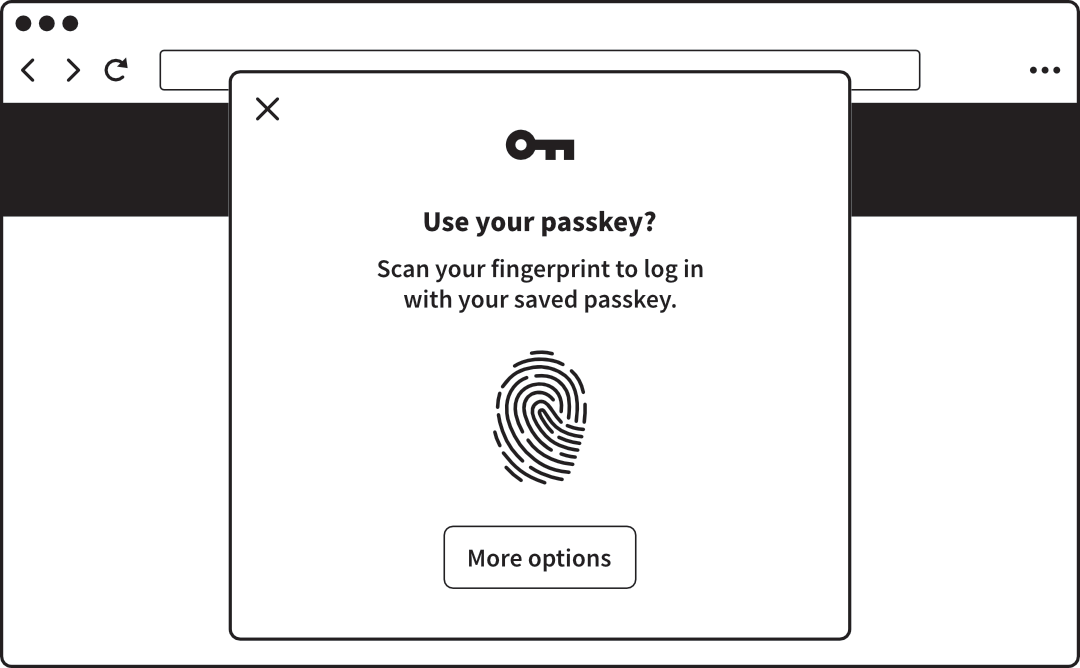 A web browser offering to use a passkey with biometric approval
Note that your biometric information, PIN or device password isn’t shared
with the website. In fact, it never leaves your device. Rather, these means
of authentication are simply how you consent to using the passkey.
Syncing passkeys
The major industry players – and others, including companies making
password managers – have created ways to sync passkeys between your devices
via their respective cloud services (for more on password managers, see
Use Strong, Unique Passwords).
In doing so they have carefully considered the safety of the stored keys,
which would be a goldmine for hackers. They’re encrypted using a PIN or
equivalent – chosen by and known only to each customer – so that the company
itself can’t read them. This means that even if the whole company is
breached, or compelled to give access to a law enforcement agency,
everyone’s passkeys will still be safe.
Cross-device authentication
In some cases, you can use a passkey stored on one device to log in on
another. So, you might use a passkey stored on your phone to log into a
website on your computer — even if the devices aren’t syncing passkeys. This
is called cross-device authentication.
For example, on your computer, you’d choose the option to use a passkey
from another device. The computer then shows a QR code. You point your
phone’s camera at the QR code to scan it, and the necessary information is
exchanged via Bluetooth.
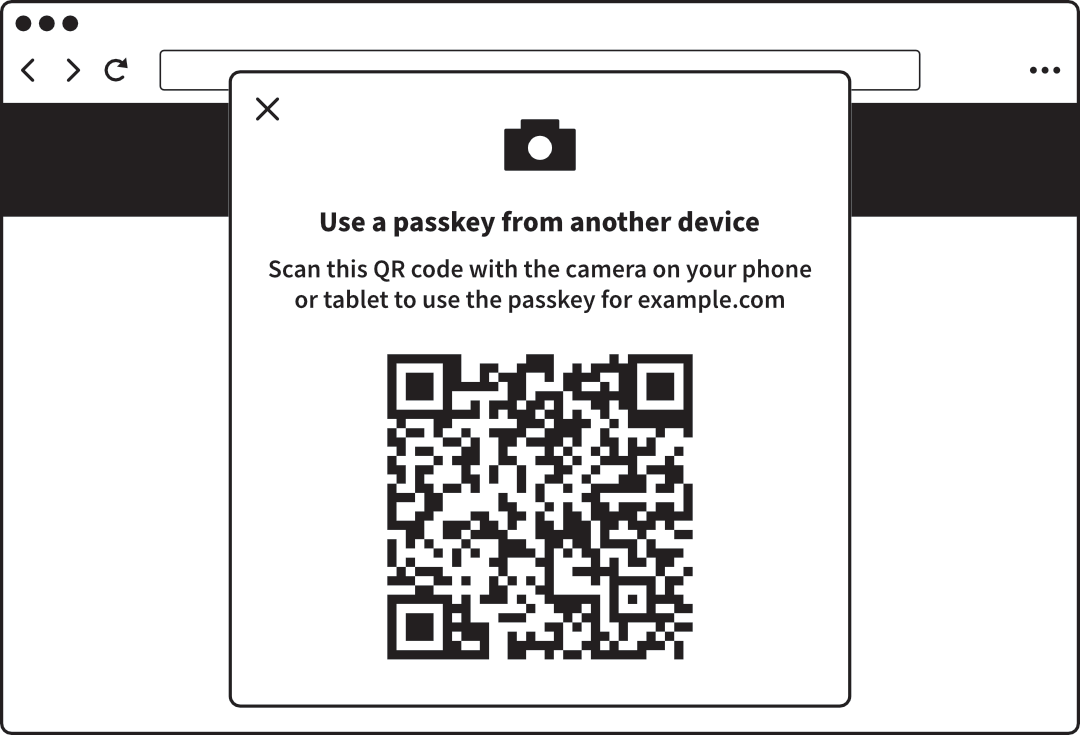 A web browser offering cross-device authentication
Hardware tokens
You can optionally buy a hardware token to store your
passkeys. This is a small gadget that looks much like a flash drive (memory
stick) and connects to your computer via USB. For extra security, you might
choose one with a fingerprint reader so that no one else can use it if it’s
lost or stolen.
Lost passkeys
While passkeys are convenient for day-to-day use, they don’t supplant the
older authentication options you’ve previously set up. If for any reason you
lose your passkeys, you can still log into the site using your password and
two-factor authentication.
It’s likely that in future, more accounts will go
passwordless — but they still won’t rely on passkeys
exclusively. You’ll still register a phone number, authenticator app or
hardware token – or print a recovery code – in case you lose your
passkeys.